

Here’s how to insert a SIM card in your phone the right way, whether you’re putting a physical SIM in the tray or skipping the plastic entirely with an eSIM. Both paths take a couple of minutes, and we’ll walk through each one.
SIM card sizes, explained
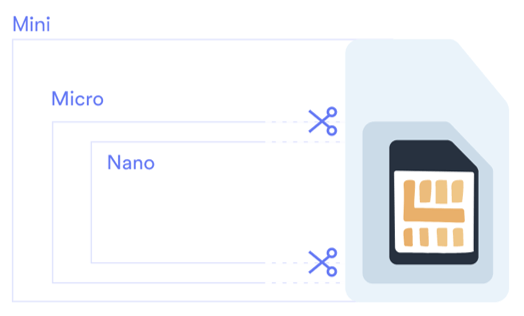
Quick refresher first. A SIM is the little chip that tells the network who you are and connects you to service. If you’re holding a physical SIM, it comes in one of three sizes, and the one you need depends on how old your phone is.
| SIM size | Dimensions | Typical phones |
|---|---|---|
| Mini (Standard) | 15 x 25 mm | 2011 and older, like the iPhone 3 |
| Micro | 12 x 15 mm | Roughly 2012 to 2013, like the iPhone 4 |
| Nano | 8.8 x 12.3 mm | iPhone 5 and newer, most modern Android |
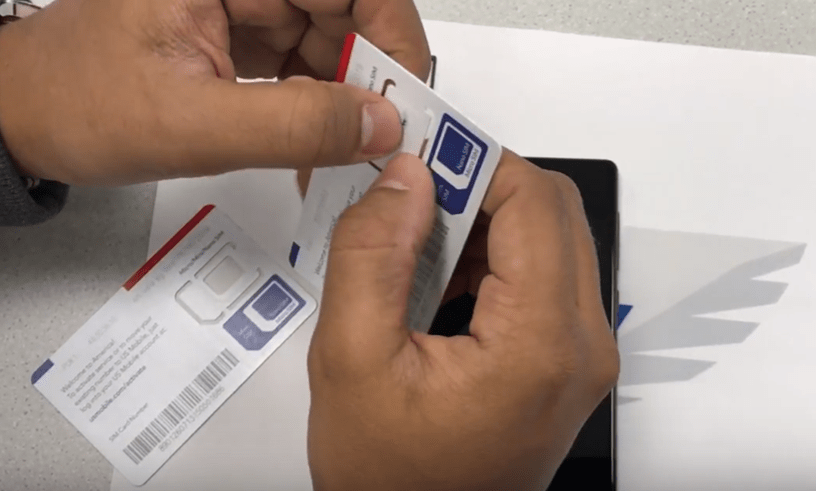
Nearly every phone made in the last decade uses the Nano SIM. US Mobile’s physical SIM cards are pre-cut to all three sizes, so you just press gently along the perforated line for the size you need and the SIM pops free. No scissors, no guessing.
What you need before you start
For a physical SIM, the list is short:
- Your SIM card, cut to the right size (Nano for almost everyone).
- A SIM ejector tool. It’s the little metal pin that shipped in your phone’s box. Lost it? A standard paperclip, unbent, works just as well.
- A minute of patience. That’s genuinely it.
If you’re going the eSIM route instead, you don’t need any tools. You’ll want a Wi-Fi connection and either a QR code from your carrier or an in-app activation. More on that below.
How to insert a physical SIM card
The SIM tray usually sits on the side of the phone, sometimes the top. Look for a tiny pinhole. That’s where the tool goes. Here’s the whole thing, step by step.
Power down (optional but smart)
You can swap a SIM with the phone on, but turning it off first avoids any weird “SIM not recognized” hiccups. Your call.
Find the pinhole and pop the tray
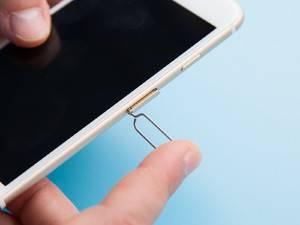
Push the ejector tool (or paperclip) straight into the little hole next to the tray. Press firmly and the tray pops out a few millimeters. Pull it the rest of the way with your fingers.
Seat the SIM in the tray
Lay the SIM into the tray’s cutout. The gold metal contacts face down (toward the tray on most phones), and the angled corner lines up with the notch so it only fits one way. Don’t force it. It should sit flush.
Slide the tray back in
Push it back into the phone the same way it came out, until it’s flush with the body. If it won’t go, flip the SIM and check the orientation again.
Power on and wait for signal
Turn the phone back on. Within a minute or two you should see your carrier name and signal bars up top. If you’re activating a new line, follow your carrier’s setup prompt.
If you don’t have the ejector tool handy, a paperclip works fine. The clip below shows the SIM going into a Xiaomi Mi Mix, but the steps are the same on any phone with a tray.
No tray? Install an eSIM instead
Here’s the thing about a lot of new phones: there’s no slot to insert anything. The SIM is built right into the phone as software, and you “install” it by downloading a profile over Wi-Fi. That’s an eSIM. If you’re new to the idea, start with our explainer on what an eSIM card actually is.
The upside is real. There’s no waiting on a card in the mail, no fiddly tray, and you can store several carrier profiles on one phone and switch between them in settings. Activation runs over Wi-Fi and usually takes about two minutes. Most carriers hand you a QR code to kick it off, and you can read up on how to find and scan your eSIM QR code if you’ve never done it.
The exact menu path depends on your phone, so here are the three most common ones.
Add an eSIM on iPhone
If your carrier supports a QR code or Apple’s eSIM Quick Transfer, this is under two minutes.
Get on Wi-Fi
Settings > Wi-Fi. The eSIM profile downloads over the internet, so a steady connection matters more than cell signal here.
Open the eSIM setup screen
Go to Settings > Cellular (it may say Mobile Service) > Add eSIM.
Scan your QR code
Choose “Use QR Code” and point the camera at the code from your carrier. No code? Pick “Enter Details Manually” and type the SM-DP+ address and activation code instead.
Label the line and pick your default
Give the line a name (“Personal”, “Travel”) so you can tell lines apart, then choose which one handles calls, texts, and data. You can change this anytime.
Moving from an old iPhone? Apple’s Quick Transfer can shuttle the eSIM over Bluetooth with no QR code at all. For a full activation walkthrough across devices, our eSIM activation guide covers every path.
Add an eSIM on Pixel and Samsung
Android wording shifts a little by brand, but the flow is the same. Here are the two big ones.
Google Pixel
- Settings > Network & internet > SIMs > Add SIM
- When it asks for a physical SIM, tap “Download a SIM instead”
- Scan the QR code, then toggle the line on
Samsung Galaxy
- Settings > Connections > SIM manager > Add eSIM
- Choose “Scan QR code from service provider”
- Confirm, then set it for calls and data
Once the line is on, you set which SIM handles calls and which handles data, and you’re connected. Same two-minute deal as iPhone.
Try a US Mobile eSIM free
If you don’t have a plan yet, this is the painless way to test eSIM on a real network before paying a cent. The free trial runs 30 days with 30GB of data on Warp 5G or Dark Star. You add a payment method to start, but you aren’t charged during the trial, and there’s no contract if you walk away.
Start at get-started
Head to usmobile.com/get-started and create an account or log in.
Add a new line, then Special Offers
Choose “Free Trial” and continue.
Pick eSIM activation
Skip the physical Starter Kit and select eSIM, so there’s nothing to wait for in the mail.
Choose your network and transfer your number
Pick Warp or Dark Star, then bring your existing number over (the trial asks you to port a number). Confirm, scan the QR code with your camera, and your line is live in a few minutes.
Paid plans start at $8/mo for light users and $25/mo for Unlimited Starter, all with eSIM, a $0 activation fee, and no contract. Annual billing drops those further.
If the SIM doesn’t read
Try US Mobile eSIM free for 30 days
30GB of data on Warp 5G or Dark Star. No charge during the trial, no contract.
Start your free trialFrequently Asked Questions
Which way does the SIM card go in the tray?
Gold metal contacts face down on most phones, meaning they touch the tray rather than point up at you. The angled corner of the SIM lines up with the matching notch in the tray, so it only fits one way. If it won’t sit flush, flip it and check the orientation.
What size SIM card does my phone use?
Almost every phone made since the iPhone 5 era uses a Nano SIM (8.8 x 12.3 mm). Older phones may use Micro or Mini (Standard). US Mobile’s physical SIM cards are pre-cut to all three sizes, so you press out the one you need.
How do I insert a SIM if my phone has no tray?
Newer phones like the iPhone 14 and later, and the Pixel 10 series, are eSIM-only and have no SIM tray. Instead of inserting a card, you install an eSIM in Settings: iPhone uses Settings > Cellular > Add eSIM, Pixel uses Settings > Network & internet > SIMs > Add SIM, and Samsung uses Settings > Connections > SIM manager > Add eSIM. You scan a QR code from your carrier to finish.
Can I use a paperclip to open the SIM tray?
Yes. If you’ve lost the SIM ejector tool that came with your phone, unbend a standard paperclip and push it straight into the small pinhole next to the tray. Press firmly and the tray pops out. Don’t use anything that could snap off inside the hole.
Can I try an eSIM before paying for a plan?
Yes. US Mobile offers a free 30-day eSIM trial with 30GB of data on the Warp 5G or Dark Star network. You add a payment method to start but aren’t charged during the trial, and there’s no contract.

408 Comments