


For the nerds. You know who you are.
Look, we get it. Every company says they take security seriously. It’s become one of those commonly-used phrases, right up there with “we value your privacy” and “your call is important to us.” So instead of asking you to trust the marketing copy, we figured we’d just… show you. All of it. The architecture, the reasoning, the tradeoffs, the stuff we’re still working on.
This one’s for the folks who actually want to peek behind the curtain. If you’ve ever wondered what happens the moment after you flip a security toggle in your account settings, keep reading.
Fair warning: it gets pretty technical.
First, the Stuff That Keeps Us Up at Night
Before we talk about what we’ve built, it helps to understand what we’re building against. Your wireless account is, and I realize this sounds dramatic but stick with me, one of the most valuable digital assets you own. Not because of the phone plan itself. Because your phone number is the master key to basically everything else in your digital life.
Think about it. Banking 2FA codes. Account recovery flows. Social media verifications. If someone hijacks your number, they’re not just stealing a phone line. They’re stealing the keys to your entire online identity.
So what are the actual attack vectors?
SIM swap fraud is probably the one you’ve heard of. An attacker social-engineers a carrier (or bribes someone like a store rep, which… yeah, it happens) into transferring your number to a SIM card they control. Crypto Twitter has some truly brutal stories about this. We treat every single line-level operation as potentially hostile by default because of it.
Port-out hijacking is the same basic idea, except instead of swapping SIMs within the same carrier, the attacker ports your number out to an entirely different provider. Once that port goes through? You’re done. They own the number.
Credential stuffing is the boring one but honestly it might be the most dangerous because of sheer volume. Attackers grab username/password combos from breached databases (every data dump from every random website you signed up for in 2014) and just… try them everywhere. Automatically. At scale. And because people reuse passwords (please stop doing this, we’re begging you), it works way more often than it should.
Social engineering against support agents. Someone calls in, pretends to be you, and smooth-talks their way into account changes. Classic human exploit. No amount of encryption helps if the person on the phone gets tricked.
Every security feature we develop must directly counter genuine threats like these, or anticipate new, emerging vulnerabilities. If a feature does not address a real-world risk, it is unnecessary “security theater,” which we actively avoid — making users perform pointless tasks that “feel” secure creates user fatigue and wastes time. Our entire security strategy focuses on defending against established threats.
Authentication: Passwords, Passkeys, and Proving You’re You
The Password Situation
Like so many security professionals, we dream of a world that’s evolved past passwords.. We’re not there yet, but we’ve tried to make the baseline less terrible.
We require a mix of uppercase, lowercase, numbers, and special characters with a minimum of 8 characters. Quick napkin math: a 96-character alphabet with 8 characters gives you something like 7.2 quadrillion combinations. Sounds impressive until you realize that modern cracking hardware can burn through around 100 billion guesses per second, which means an 8-character password falls in roughly 20 hours. Bump that to 10 characters and suddenly you’re looking at 21 years. At 12 characters though? You’re looking at roughly 19 million years. Length matters enormously.
More importantly (and this is the part people always ask about): we don’t actually have your password. We store a salted, hashed version that can’t be reversed. Grab our entire database and you’d have a pile of cryptographic gibberish. It’s like trying to un-scramble an egg — theoretically possible, practically meaningless.
Two-Factor Authentication
We were one of the first MVNOs to support authenticator apps for 2FA. Not just SMS, but actual TOTP-based authentication through apps like Authy, Google Authenticator, or Duo. (We used to offer email-based 2FA too, but deprecated it. Email accounts are frequently targeted in phishing attacks and account takeover chains, which made it the weakest layer in the stack.)
The way to think about 2FA isn’t really “which method is best.” It’s about how many layers you’ve got between an attacker and your account. Each one you add shrinks the attack surface. SMS verification? That’s a layer. TOTP through an authenticator app? That’s another layer, and a stronger one because it lives on your physical device, completely independent of the carrier network. That distinction matters especially with SIM swap attacks, since an attacker who ports your number won’t have access to your authenticator app.
So why do we still support SMS verification? Because not everyone can use TOTP. Maybe you’re on a basic phone. Maybe authenticator apps aren’t something you’re comfortable setting up yet. An imperfect layer still beats no layer at all. That said, if you can use an authenticator app, you absolutely should. It’s the stronger option, full stop.
Now here’s the part where we have to be straight with you. Your account’s security is only as strong as its weakest recovery path, not just the primary method you log in with. If you’ve got TOTP set up but keep SMS as a backup, an attacker who compromises your phone number still has a way in through that backup path. It’s not a flaw in the system so much as it is something to be intentional about. Once you’re confident with your authenticator app, consider removing weaker backup methods. Tighten the chain, don’t just add links to it.
The next feature manages to be both more secure and more convenient.
Passkeys: The Post-Password Future
Late 2025, we shipped passkeys on the mobile app. Built on FIDO2/WebAuthn. And honestly? This is probably the most consequential authentication upgrade we’ve ever done.
The problem statement our PM team started with was deceptively simple: passwords are hard to remember, so people reuse them or pick weak ones, which makes them a liability. 2FA adds security but piles on extra steps. SMS-based 2FA in particular has the circular vulnerability problem we just described. What if we could just skip all of that?
Here’s the quick and dirty on how passkeys work:
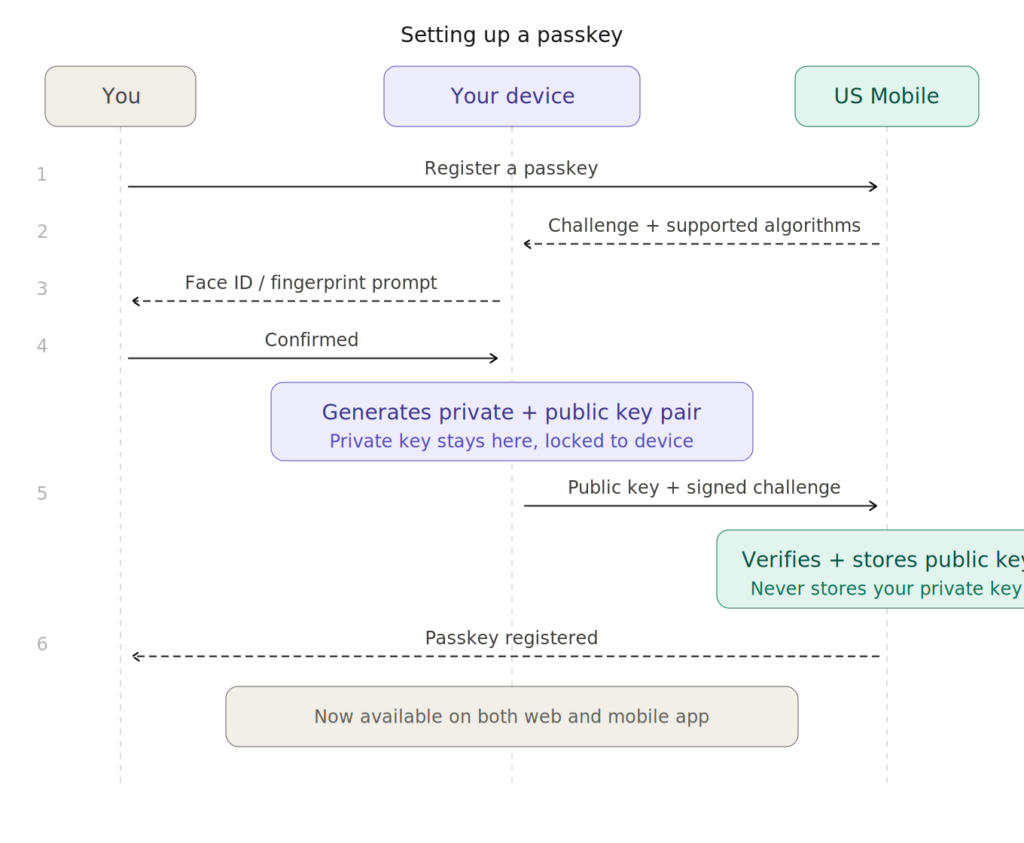
When you register a passkey, your device generates a public/private key pair. The private key lives in your device’s secure hardware (the Secure Enclave on iPhone, TPM on most other hardware) and literally never leaves — we don’t know anything at all about what your face or your fingerprints look like. We only ever receive the public key. The credential is cryptographically bound to our specific domain, so even a pixel-perfect phishing clone of our login page can’t trick it. It’s like your device has a copy of our website’s fingerprint — if the address is even slightly off, it simply won’t authenticate.
And here’s what happens when you sign in:
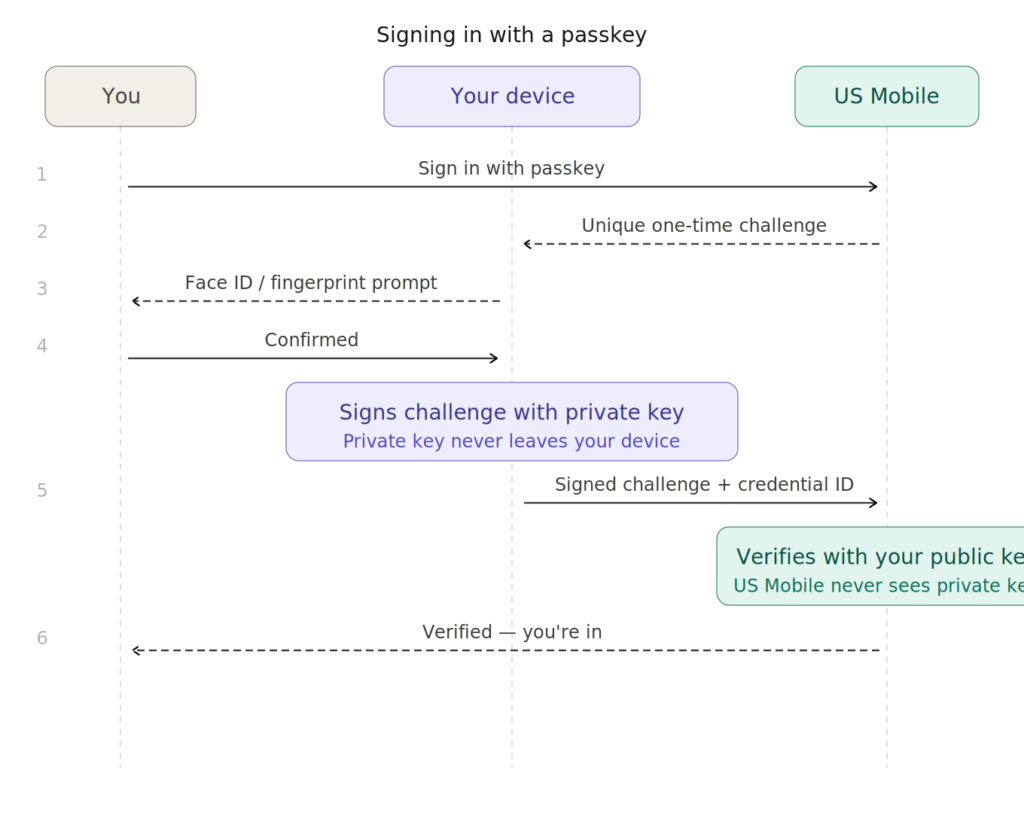
That’s it. No shared secret ever crosses the network. There’s nothing to phish because the credential is cryptographically bound to our specific domain (the Relying Party ID in WebAuthn terminology). Even a perfect replica of our login page, down to the last pixel wouldn’t work because the passkey checks the domain before signing anything. Even if the most skeptical user would be fooled, the machine won’t be. Nothing to intercept, nothing to replay, nothing to stuff. It’s just better.
We also track which types of authenticators are registered across our user base so we can monitor the overall security posture without compromising individual privacy. It also means we can detect if someone registers a passkey from an authenticator with known vulnerabilities and take appropriate action.
We looked at the space and decided that FIDO2 was the right standard to bet on, because it’s where the industry is converging and it doesn’t lock our users into carrier-specific infrastructure.
Platform support requires iOS 16+, Android 9+, macOS Ventura, Windows 10+, and ChromeOS 109+. US Mobile supports passkeys on iOS 16+, Android 9+, macOS Ventura, Windows 10+, and ChromeOS 109+. To keep your account clean and your credentials easy to manage, we allow one passkey per authenticator type — so if you’re using iCloud Keychain, you’ll have one passkey, not a growing list of duplicates. If you ever want to re-enroll with the same authenticator, simply remove the existing passkey first. This intentional design means your passkey list always reflects exactly what’s active and trusted on your account.
We have passkey support live on both the web dashboard and mobile app. You can authenticate seamlessly across platforms using a single passkey credential stored in your preferred password manager
Re-Auth: Proving You’re Still You
Here’s something that might seem annoying until you think about it for five seconds. Being logged in proves you were the account holder at some point. It doesn’t prove you still are, right now, at this moment.
So we built a re-authentication layer for high-risk operations. Even with a valid session, if you try to do something sensitive (like toggling Enhanced Security), we’ll ask you to verify again before we process the action. It’s the same principle banks use for wire transfers. Yeah, you’re logged in. But before we move a bunch of money around, let’s double-check.
We bucket account operations into risk tiers. Routine actions ride on the existing session. But anything that could meaningfully change your account’s security posture requires step-up authentication. The idea is that a compromised session shouldn’t be enough to do real damage.
Right now re-auth covers Enhanced Security actions, and we’re expanding coverage to additional sensitive operations over time. Longer-term, we’re exploring tying re-auth sessions to support conversations too, so verification stays alive for the duration of the conversation, then expires automatically.
Device Fingerprinting and Behavioral ML
This is where it gets kind of interesting from an engineering perspective.
Every time you interact with our platform, we’re passively collecting a constellation of signals, a composite device fingerprint, a multi-signal behavioral signature built from your device and session characteristics. The specifics of what we collect are something we keep close to the chest (for obvious reasons).
We led early adoption of profile fingerprinting among carriers for anomaly detection. Our lead security engineer, Avenash, has described our approach as using robust cybersecurity systems to protect against bots, scraping activity, credential stuffing and brute-force login attempts, fraud and API abuse, and large-scale scanning or DDoS patterns. This is combined with traditional controls like firewalls to regulate incoming and outgoing network traffic, and strong encryption for data transmission and storage to ensure sensitive information remains protected.
What truly differentiates our approach, however, is the fingerprinting layer—allowing us to identify and stop suspicious or automated behavior even when attackers attempt to rotate IPs or disguise their identity.
If your login suddenly looks nothing like your established pattern, that session gets flagged and extra verification steps kick in. Our ML pipeline scores each request against your historical profile, and high-deviation events trigger extra verification steps.
But fingerprinting isn’t just about stopping attackers, it’s also about reducing friction for legitimate users. If we’re confident it’s you, on your usual device, from your usual location, performing routine actions, we can skip unnecessary verification steps. The goal isn’t to make everyone’s experience harder, it’s to make the attacker’s experience disproportionately harder.
Our Progressive Web App architecture gives us an additional advantage. Unlike traditional native apps, it allows us to continuously observe how users interact with the platform over time and feed that evolving context into our models. As users engage with our PWA, we build a richer understanding of normal behavior, making it easier to distinguish genuine activity from suspicious patterns.
BreachShield: Watching Other Companies’ Backs for You
This might be my favorite thing we’ve built, mostly because it solves a problem before it becomes our problem.
Here’s the reality: people reuse passwords. You probably do it, too. And that means a breach at some completely unrelated service (a food delivery app you used twice in 2019, a gaming forum from college, a fitness tracker you forgot you signed up for) can put your US Mobile account at risk if you happened to use the same credentials.
BreachShield (internally, it was the first component of what we now call “Project Citadel”) continuously monitors dark web data dumps and known breach datasets. When we find credentials associated with a US Mobile user’s email, here’s what happens:
The account gets locked immediately until the password is changed. The user gets an email explaining exactly what happened and what they need to do. The event gets logged in our fraud management engine, which passes the data to the fraud engine for risk scoring and downstream analysis.
And before you ask: no, we still don’t know your password during this process. What we’re matching is the cryptographic hash. When a breached dataset contains a password whose hash matches the salted reference we have stored, that’s the trigger. We never see plaintext at any point. Ever. We don’t know your password.
We are working on expanding this feature to block compromised passwords at registration time, so if you try to sign up with a password that’s already appeared in a known breach, we’ll reject it before you even create the account. That’s something most carriers don’t bother with, but it closes a pretty obvious gap.
We run the same system on our own employees too, through automated email alerts when any employee’s credentials show up in breach data. Because a compromised employee account is potentially way more dangerous than a compromised customer account, and we’d be hypocrites if we didn’t eat our own cooking here.
Enhanced Security (Project Citadel)
Okay. This is the headline feature, and there’s a story behind how it came together that I think is worth telling.
For years, we had features called “NeverSIMSwap” and “No Port Out.” They worked. The problem was the workflow: you had to contact support, go through a triple verification process (access to line, access to email, access to dashboard), confirm your security questions with an agent, and then wait for someone with the right admin permissions to manually flip a flag on your account’s SIM page. If you wanted to undo it later to perform a legitimate swap or port? Same process, in reverse.
Customers hated it, if they knew about it at all. Not the security itself, but the friction. We had a Reddit post with 79+ upvotes literally asking us to let people self-serve these features.
So we built Enhanced Security from scratch. Under the hood, the old system was essentially a single protection flag, and while it blocked port-outs effectively, other sensitive operations. relied on support agents following protocol rather than automated enforcement. SIM swaps, usage log access, network transfers? Those relied entirely on support agents following protocol. No backend enforcement whatsoever.
The new architecture replaced that single flag with four granular flags at the line level:
- SIM swap protection blocks eSIM swaps on the same network
- Network transfer protection blocks network transfers between Warp and Light Speed
- Port-out protection blocks port-outs to other carriers
- Usage log protection blocks downloads of call and data records
Each flag maps to a specific toggle in your Line Settings. When a flag is active, the corresponding operation is blocked at the backend level, not just in the UI. Our support team can’t override it either. To do any of these things, you first disable the relevant Enhanced Security toggle (which triggers re-authentication), complete your operation, and turn it back on.
The design philosophy is “default deny.” Instead of trying to determine in real time whether a SIM swap request is legit (which is really, really hard to do perfectly, especially when you factor in social engineering), we just… make it impossible until the verified account holder explicitly says otherwise. Same approach hardware wallets use in crypto. The safest default is the most restrictive one.
A couple of prerequisites gate access to the feature: 2FA must be enabled (because locking the vault doesn’t help if the combination is taped to the door), and your account role must be OWNER or ADMIN. That second requirement exists because on multi-line family plans, we don’t want a secondary user locking the account holder out of their own line management.
Network-Level Protection: Spam Detect and Web Filtering
Spam Detect ($2/mo on Warp)
Spam Detect works at the carrier network layer to flag suspected spam, robocall, and fraud callers right in your Caller ID before you pick up. It also enriches unknown caller information with names when available through carrier databases.
Important distinction: this does not block calls. Your phone still rings. You still get to decide. We just give you way more information to make that decision with. The detection happens on the network infrastructure itself, meaning there’s no app to install, no settings to configure on your device. It just works.
Web Filtering ($2/mo on Light Speed)
DNS-level filtering of unsafe and malicious web traffic while you’re on mobile data. Phishing sites, malware distribution, content categories you’d rather keep off a family member’s device. It runs at the network layer, so it works across every app and browser without any software to install.
Particularly useful if you’ve got kids on your plan. Or parents. Or just yourself. Phishing doesn’t discriminate.
The Fraud Engine You Never See
Behind all the customer-facing features sits a fraud management engine that aggregates signals from virtually every part of the system:
Failed logins and 2FA failures. BreachShield matches. Device fingerprint anomalies. Unusual patterns in support interactions. Transaction velocity, how quickly changes are made to an account (because legitimate users rarely swap their SIM, change devices, update their plan, and reset their password all within the same 10-minute window). And increasingly, behavioral signals, how someone is actually interacting with our site, such as navigation patterns, click behavior, and session flow.
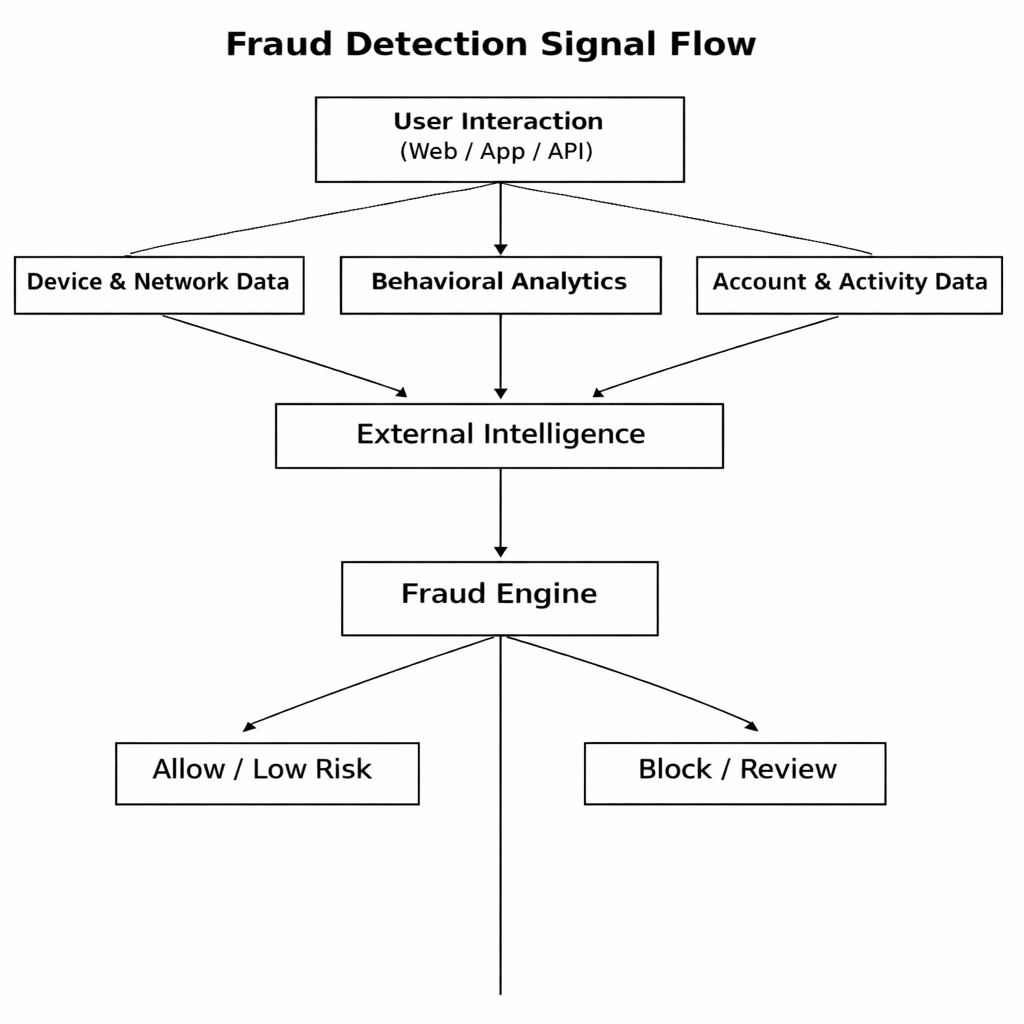
All of these signals feed into a centralized risk scoring system, enriched with additional intelligence from external data sources. We incorporate SIM swap activity, activation data, card dispute history, refund patterns, and geographic anomalies into the model. Based on the resulting score, high-risk events are either automatically blocked or escalated for human review.
We’re actively building a more granular fraud scoring dashboard with adjustable parameter weighting, giving our security team the ability to tune sensitivity as attack patterns evolve. We’re also extending the engine earlier in the lifecycle, analyzing order and signup data at activation time, so suspicious accounts can be stopped before they ever become active.
It’s not glamorous work. But it’s some of the most critical infrastructure running behind the scenes.
Internal Controls (a.k.a. Not Trusting Ourselves Either)
Here’s something a lot of companies won’t admit: external attackers aren’t the only threat. Insider risk is real, and pretending it isn’t is naive.
So we limit what our own systems and people can do. Role-based access control in the admin portal means not every employee can touch sensitive operations. We recently overhauled our permission system, creating granular roles and restricting who can even view certain pages. Agent verification protocols now require device-level and account-based verification links tied to specific actions. That last part is crucial: a verification link issued for a SIM swap can’t be reused for a port-out. The verification is action-bound, not session-bound.
Every sensitive operation gets audit-logged with timestamps, who did it, and exactly what changed. We maintain comprehensive audit logging across our systems with timestamps, who did it, and exactly what changed. We enforce password rotation for employees and mandatory 2FA through our zero-trust policy with re-authentication required at regular intervals.
What We’re Building Next
We don’t really do “done” when it comes to security. Here’s what’s actively in the works:
Step-up auth for everything sensitive. Expanding re-authentication to cover SIM swaps, number ports, device changes, 2FA modifications, account email changes, and primary number updates. We’re also exploring adding SSO providers to the re-auth flow, so you could verify via your Google or Apple account as a step-up method.
Self-service port-out flows. Right now, port-outs with Enhanced Security on means disabling the feature first. We’re building a dedicated self-service flow where you can authorize a port-out through enhanced verification without having to fully disable line protection. The backend will handle one-time authentication specifically for the port-out and automatically restore protection once it completes.
Port-out fraud detection with real-time alerts. We’re building automated notifications that fire both when a port-out request is initiated and when it completes. The initiation email will include a fraud report link. If you click it, we instantly apply security flags across the line and all linked MDNs, blocking the port-out before validation completes. There’s also a mandatory delay built into the port-out validation pipeline for added breathing room.
Account Lockdown Mode. Think of it as Enhanced Security but for your entire account, not just individual lines. For those moments when you know you’re being targeted and you want to batten down every hatch at once.
Usage-based fraud detection. Pattern analysis on call, text, and data usage to catch anomalies that suggest compromise or device cloning, potentially before the attacker even tries to make account changes.
Cool-down periods. We’re implementing mandatory cooling-off windows after sensitive account changes: password resets, 2FA modifications, email changes, primary number changes. The idea is that if an attacker manages to change your password, you have a window before they can also change your 2FA and email, giving you time to notice and respond.
The Honest Tradeoff
Every single security feature we ship is a bet that you’ll accept some amount of extra friction in exchange for protection. Passkeys are objectively better than passwords, but there’s a learning curve. Enhanced Security stops SIM swap fraud cold, but you have to turn it off when you legitimately need to switch devices. Re-auth catches takeover attempts, but it means proving who you are more often.
We could make the platform maximally secure by making it maximally annoying. We don’t want to do that. So where we can, features are opt-in — we tell you what it does, what it blocks, and what inconvenience it adds. For the protections that matter most, like re-authentication on high-risk actions, we do require them — but we’ll always tell you why, and we’ll always give you options for how.
The point was never to build a carrier that is merely “secure” in some abstract, compliance-checkbox way. We wanted to build something where security is a product feature you actually appreciate and choose to use. Something you’d brag about on Reddit.
We think we’re getting there. And we’re definitely not done.
Got questions about any of this? Want us to go deeper on a particular system? Drop a comment below or come find us on r/USMobile. We’ll nerd out with you.

Once a physical passkey (like Yubikey) is set up, can you change a US Mobile account setting to require passkey for future logins? My experience has been that standard user/pw login is still an option after a passkey was set up, (which seems to defeat the benefit of increased passkey security).
In the Blog “Under The Hood:How We Actually Secure Your Account(A Technical Deep Dive)” you wrote:
“Platform support requires iOS 16+, Android 9+, macOS Ventura, Windows 10+, and ChromeOS 109+. US Mobile supports passkeys on iOS 16+, Android 9+, macOS Ventura, Windows 10+, and ChromeOS 109+. ”
Question- For MacOS is Ventura the only MacOS that passkeys is supported on? How about Sequoia and Tahoe?
You wrote:
“To keep your account clean and your credentials easy to manage, we allow one passkey per authenticator type — so if you’re using iCloud Keychain, you’ll have one passkey, not a growing list of duplicates.”
Question- So if I wanted to use two Yubikeys, one for the primary passkey and one for a backup in case I lose the primary Yubikey I couldn’t do that?
Am I forced to use another device type like a phone or computer in order to have a backup authentication method?
Another point that is unclear is you talk about passkeys being integrated into your app but I am aware that both Firefox and Safari have passkey
support integrated into them. Is your USmobile app required to login to my account using a passkey?(computer or phone) If the answer to the
previous question is yes, then how does the USmobile app and the web browser interact? Do they share information between the two of them?
My preferred browser of choice is Firefox. Do you support Firefox or would I have to use Safari or Chrome?
Thanks for any additional information you can give that would help enlighten me on how you system works with passkeys.
Doug
Thanks for the thoughtful questions — these are exactly the kinds of details that deserve more clarity. Let me address each one:
macOS Version Support
Passkeys are fully supported on Sonoma (14) and Sequoia (15) as well. If you’re on any of those, you’re good to go. We’ll update the blog post to say “macOS Ventura or later” to avoid confusion.
Two YubiKeys as Primary + Backup
The accurate answer here is: it depends on the models.
Our system enforces one passkey per authenticator type, which under the hood maps to AAGUID — the identifier for a specific YubiKey make and model. So:
If your two YubiKeys are different models (e.g., a YubiKey 5 NFC and a YubiKey 5C), they have different AAGUIDs and can both be registered.
If your two YubiKeys are the same model (they share an AAGUID) our current policy would restrict you to one registration for that type.
For a same-model backup key scenario, the most reliable fallback today is pairing your YubiKey with a second authenticator type (e.g., iCloud Keychain or an authenticator app).
App vs. Browser — Do You Need the US Mobile App?
No, the US Mobile app is not required to use passkeys. You can log in to your account through a web browser on your computer or phone. The app and the browser are independent authentication paths — they don’t share passkey credentials with each other. The passkey credentials are stored at the authenticator (your device or security key) you registered them on, which is independent of the browser or app.
For example, if using iCloud as the authenticator, a passkey saved on the iPhone can be synchronized (as defined in the preferences) with other devices. This is completely independent from US Mobile. That means that you can create a passkey on iOS and it can be used when logging in via browser.
The browser is an intermediate in the passkey flow. When US Mobile site prompts you for passkey, what Firefox (and other browsers) do is a sort of delegation of that flow to applications that can handle it. It can be your browser’s extension that handles password management. It can be the MacOS mechanism (which uses iCloud or also interfaces with Yubikey USB, for example.)
In short, the browser and the app don’t share the credentials with each other. However, the authenticators such as iCloud, Yubikey, Password Manager extension, can be synchronized across devices, making the passkey available in other devices where they are configured.
That’s how you can use the same passkey in different devices.
Firefox Support
Yes, Firefox is supported. Firefox added passkey support in version 122 (released January 2024). As long as your Firefox is reasonably up to date, passkey login should work seamlessly on usmobile.com. No need to switch to Chrome or Safari.
Thanks for keeping us on our toes, Doug — questions like these make our docs better for everyone! Hope this helps, and don’t hesitate to reach out if anything else comes up!